
Photo editing, step by step
How to turn a photo into anime art
Follow this photo-to-anime tutorial to upload a portrait or group photo, generate a Ghibli-inspired illustration and review the result.
Upload a photo with clear faces
Open Photo to Anime and upload your source image. For a group photo, make sure each face is large enough to recognize.
Keep in mind
If people are small or partly hidden, crop your source before uploading.
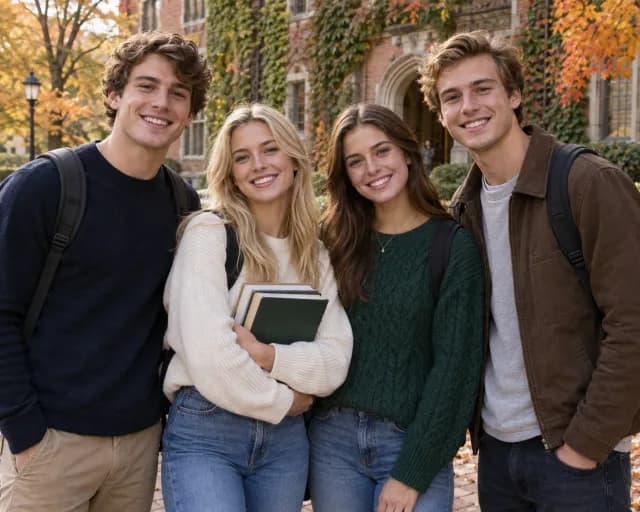
Inside the editor · Step 1
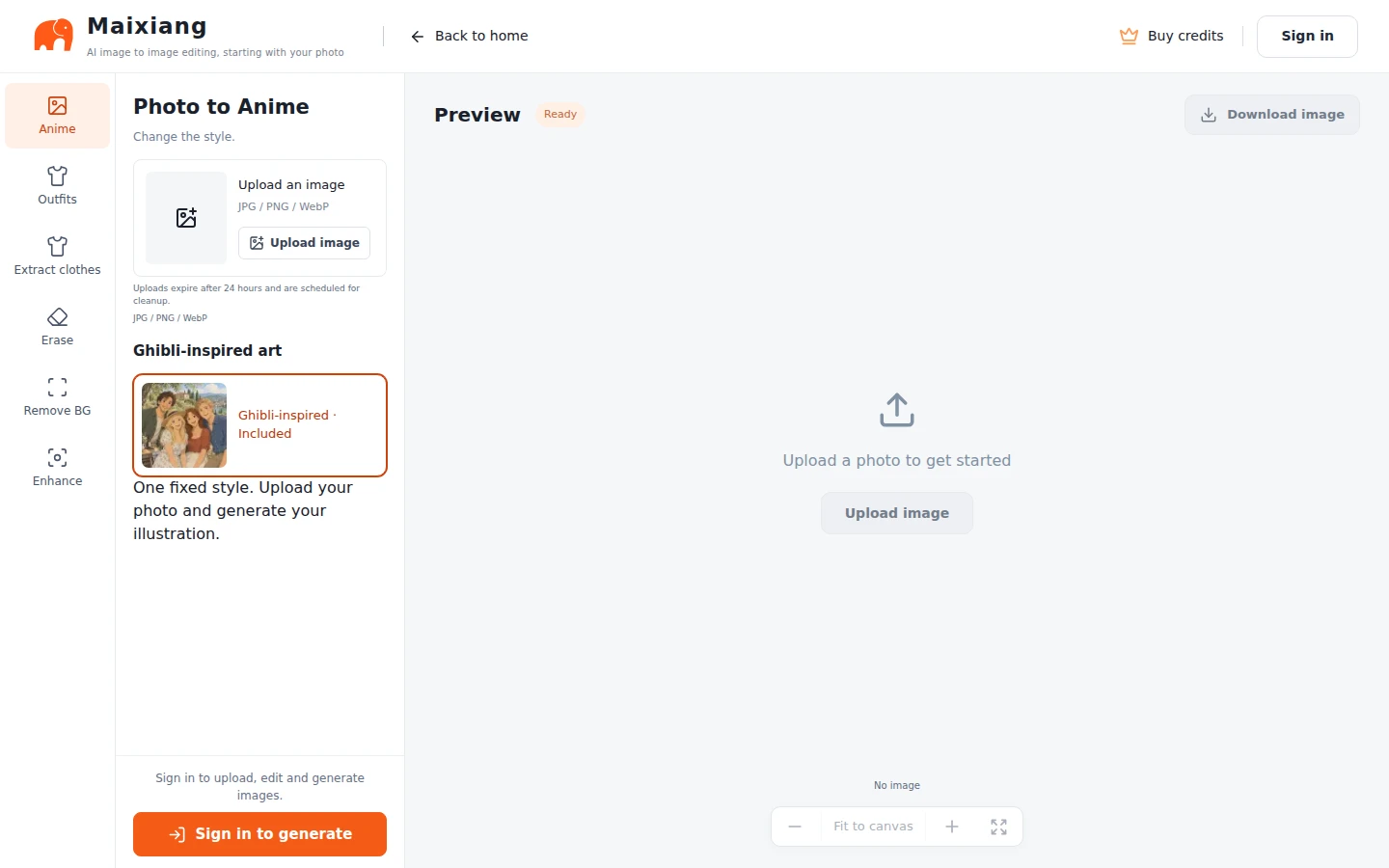
Generate the anime version
Use the Ghibli-inspired anime workflow and start generation. The AI uses your photo as a reference for the people, pose and scene.
Keep in mind
Wait for the result before starting another edit; each submission has its own credit cost.
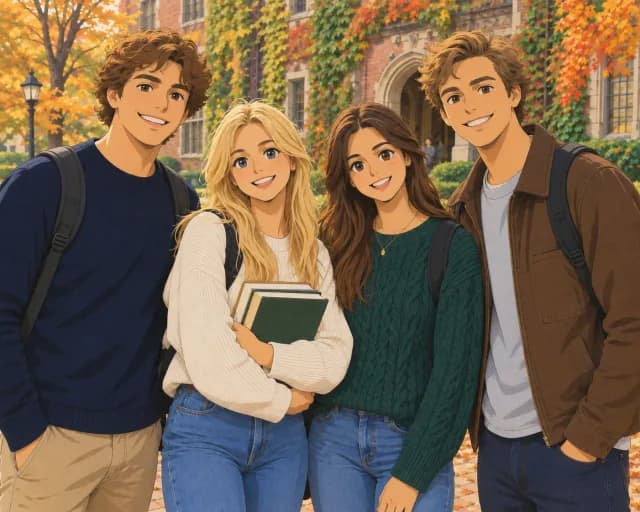
Check every face and download
Compare the illustration with the original. Review faces, hands and group placement, then download the result you want to keep.
Keep in mind
Anime conversion is a creative interpretation; small details can change.
Images reuse the photo-to-anime example shown on the tool page. A stylized illustration is not an exact photographic record.
Common questions
A few answers before you start.
What should I check when converting a party photo to anime?
Start with a clear birthday, dinner party or reunion photo. After generation, compare the number of people, each face and hand, and important decorations. Cake messages and small lettering may change during anime conversion.
How do I prepare a salon event photo for anime conversion?
Choose a well-lit photo from your discussion salon or workshop where participants are clearly visible. Avoid distant crowds and obstructed faces. Review the illustrated attendees and seating arrangement, and do not rely on AI to preserve name badges or presentation text exactly.
How do I turn a family portrait into anime?
Choose a family photo with clear faces and even lighting, upload it to Photo to Anime and generate the Ghibli-inspired illustration. Review every family member, including children and grandparents, for changes in age, expression and placement before saving.
How can I turn my photo into anime online?
Open Photo to Anime, upload a JPG, PNG or WebP photo and generate the Ghibli-inspired version. Review faces and hands before downloading. A clear original gives the tool more useful visual detail.
Can I convert a group photo into anime?
Yes. Choose a photo where each person’s face is visible and large enough to recognize. After generation, check every person for changes in facial features, pose and placement.
Will the anime version look exactly like me?
The result is a stylized interpretation of your photo. It may retain recognizable features while changing facial details, textures and lighting. Compare it with your original rather than expecting an exact likeness.
Can I use a blurry photo for anime conversion?
You can upload a soft photo, but unclear faces give the model less reliable detail. Use a clearer original when available; enhancement can also change features and does not recover missing information exactly.